

Documentation Index
Fetch the complete documentation index at: https://doc.heex.io/llms.txt
Use this file to discover all available pages before exploring further.
Packages Overview
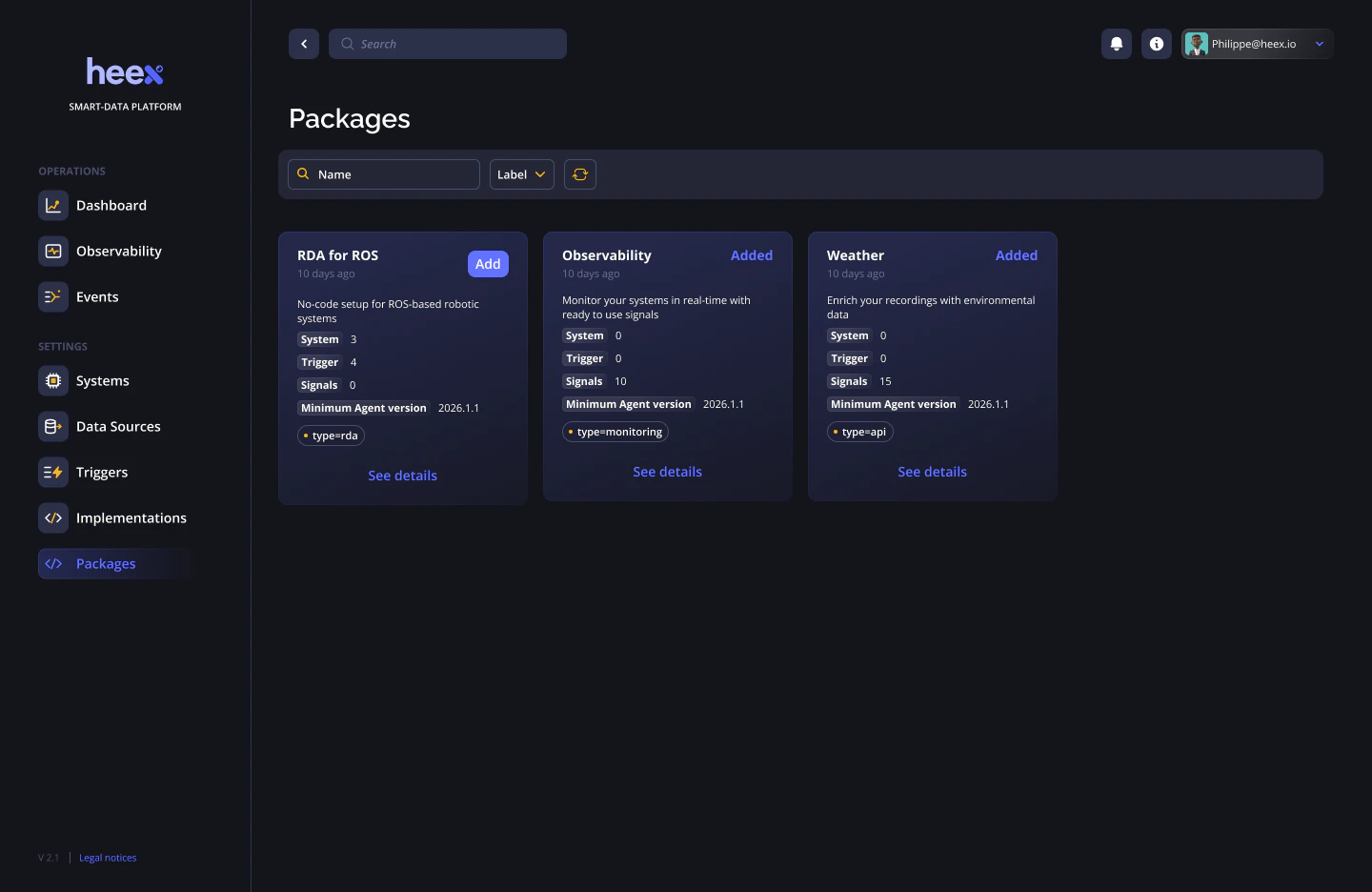
Browsing the Package Library
The Packages page, accessible from the Settings section of the left navigation, displays all available packages as a card grid. Each card shows:- Name and description of the package
- Metadata: number of systems, triggers, and signals included, and the minimum Agent version required
- Labels: tags to categorize the package (e.g.,
type=starting,domain=robot) - Action button:
Addto install it, orAddedif already installed
Some core capabilities ship as packages too, not just optional bundles. RDA (the ROS-based monitor and recorder used by all the workflows in Heex RDA) and Monitoring are installed via the Packages page. New workspaces no longer get RDA components automatically; install the RDA package to bring them in.
Adding a Package
Click Add on any package card. A confirmation modal appears, showing a summary of what will be created in your workspace:- Datasources and signals that will be added
- Implementations that are included (package implementations, no custom build needed)
package={package-name}, making them easy to identify and filter across your workspace.
Once installed, the card updates to show the Added status.
Using a Package
After installation, package signals are immediately available when creating triggers. You don’t need to configure any implementation manually: when a package signal is used in a trigger, the corresponding package implementation is automatically linked to the system.Agent Version Requirement
Each package specifies a minimum Agent version. If the agent running on a system is below that version, the package won’t work on that system. Check the Agent version in the system details and update it if needed.Some package descriptions
Weather Package
Monitor weather conditions in real time at your system’s location.Track environmental signals such as
temperature, wind speed, humidity, and more in order to understand how weather conditions affect your operations.The positions at which the weather is tracked is either extracted via your IP address, but can be overridden via trigger labels: ‘__weather_latitude’ and ‘__weather_longitude’ for manual coordinates, or ‘__weather_ip’ for IP geolocation. Priority order is manual coordinates first, then IP geolocation, then public IP fallback.
Limitation: on a single system, the agent uses one shared weather position for all triggers; multiple triggers cannot be configured with different position or IP labels at the same time.
Periodic Package
Monitor-only sample. Triggers monitoring signal conditions to ON every X periods. The periods can be set via 2 ways:- a simple basic time period. To do so, select the signal
Tick period (in milliseconds, min 10, max 86400000)and in your condition, set a period between 10 and 86400000 milliseconds. The monitor shall trigger its conditions every X milliseconds. - using 5 or 6 field cron expression (see https://en.wikipedia.org/wiki/Cron): To do so, select the
5- or 6- field Cron expression ([optional: seconds] minute hour dom month dow)signal and set up a 5- or 6- field cron expression (the first element [seconds] is optional):[secs] min hours dom month dow
File Collector Package
Recorder-only sample, that allows the upload of files or folders.Procedure: Select the
FileCollector signal in your recording conditions, and then add trigger labels to point to the files or folders you wish to be uploaded at event generation.Currently you may use
_fileCollectorUpload and _fileCollectorUploadAndDelete. Both labels will trigger the upload of given files (or folders) path, with either a deletion or not after upload.Multiple paths can be given by creating several labels for a same key, and both can be combined.
Observability Package
Monitors and records your system’s health in real time. Track key metrics such as CPU usage, memory consumption, and more to detect performance issues before they impact your operations.Thermal Package
Monitors and records your system’s hardware temperatures in real time. Tracks five category-based thermal signals:thermalCPU— CPU package temperaturethermalGPU— GPU temperaturethermalWifi— WiFi adapter temperaturethermalMotherboard— Motherboard/chassis temperaturethermalNVMe— NVMe SSD temperature
/sys/class/thermal and /sys/class/hwmon, and selects the most relevant sensor for each category. Signals for hardware that is not present on a system are simply not updated.
Thermal readings are sampled every 5 seconds. When a recording is triggered, the package provides both the temperature values at the moment of the event and a CSV file containing up to one hour of thermal history prior to the event.
Process Monitor Package
Monitor one or more Linux processes or systemd services in parallel. Each trigger contributes one target via the__process_target label. The accepted values are:
- a PID (e.g.
1234) - a systemd unit, with or without the
.servicesuffix (e.g.nginxornginx.service) - a process name matched against
/proc/<pid>/comm(e.g.chrome) - a cmdline substring (e.g.
python my_script.py)
processState—trueif the target is runningprocessCpuPercent— per-core CPU usage of the target; can exceed 100% for multi-threaded processesprocessMemoryMB— resident set size (RSS) of the target, in MB
process_history_<sanitized-target>.csv.
Limitations:
- Requires read access to
/procand, for systemd unit targets, tosystemctl. - Buffered history is capped at 10 minutes per target. Recording ranges with a pre-roll + post-roll window larger than 10 minutes will be silently clamped and only the most recent 10 minutes of samples will be available in the CSV.
Network Monitor Package
Monitors whether network targets are reachable. UseinternetReachabilityCheck to monitor general internet access. It’s a bool signal, true = “internet is reachable”
Use networkReachabilityCheck to monitor specific targets. Add one target per line in the condition free text.
Supported target formats:
internetorinternet::checks general internet accessiface:<name>: checks a local network interface, for exampleiface:eth0oriface:loip:<address>: checks an IPv4 or IPv6 address, for exampleip:127.0.0.1orip:::1tcp:<host>:<port>: checks a TCP endpoint, for exampletcp:localhost:8000ortcp:[::1]:8000bt:<address-or-name>: checks a connected Bluetooth device, for examplebt:AA:BB:CC:DD:EE:FForbt:MX Master 3
Manual Monitor Package
Drive Heex signals by hand to test your triggers and recording rules end-to-end, without needing a real datasource feeding live data. The package ships a set of sample signals covering every signal type the monitor can drive:boolean, integer, number and the unit-based families (percentage, speed, temperature, pressure, electricity, angle, acceleration, distance, decibel, concentration), as well as the string-shaped types (string, custom, date, time).
Use these signals in your trigger conditions, then set their values manually to make the conditions go ON or OFF on demand. This lets you verify that events are generated and recordings are produced exactly as expected, before wiring up your real signals.
Pick only the signals you actually need for your triggers; unused signals are harmless.
Limitation: only one Manual Monitor can run at a time on a given system.